When playing an SOP, you can open it with "Collapse the text pane" enabled, which hides the step text on the right side. Use this setting when you want to display the video larger, or when you want viewers to learn from the video, images, and narration audio alone without reading text.
Open with the step text pane collapsed
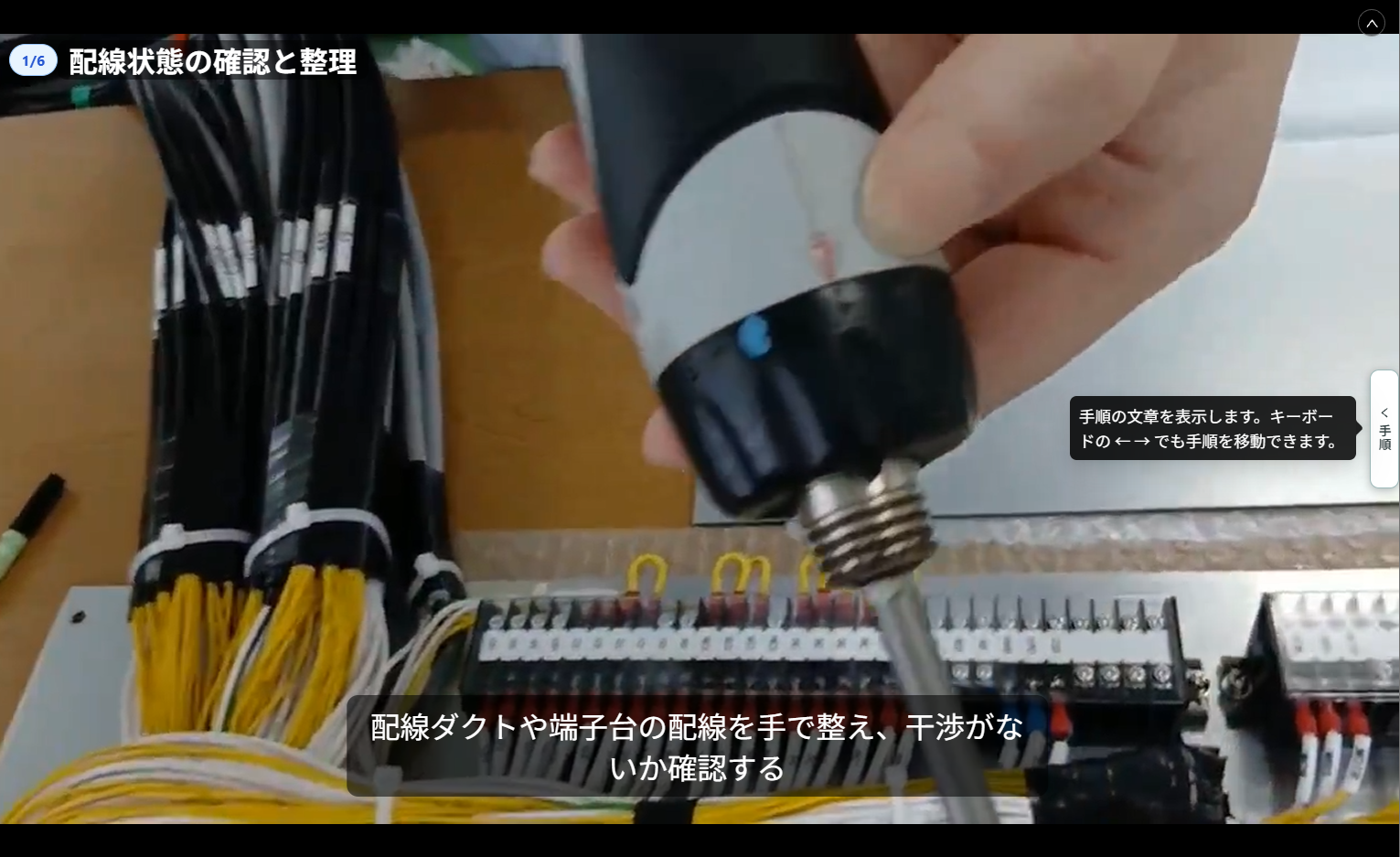
This is a playback display option that can be configured per SOP. When enabled, the text pane on the right side will be collapsed when the SOP is opened, and viewers proceed using only the video, images, slides, and narration audio. This works well for SOPs where you want to emphasize the video or teach through visuals and audio alone without text reading.
The description text itself is not deleted. It is only collapsed, so enabling the setting again will restore it. Viewers can also open the text pane on the spot by operating the divider on the playback screen (described below).
Since this setting is configured in the SOP editing screen or the "Step conversion settings" when creating a new SOP, only users who can edit SOPs can use it.
How to configure
Configure from a PC browser. You can configure this setting both for existing SOPs and when creating a new SOP.
Configure for an existing SOP
- Open the target SOP in the editing screen.
- Open "Playback & display settings" in the Advanced settings.
- Enable "Open with the step text pane collapsed".
- Save the SOP.
When enabled, the heading "Collapse the text pane" appears in "Playback & display settings", making the current state clear at a glance.
To revert, disable the same "Open with the step text pane collapsed" and save.
Configure when creating an SOP
When creating a new SOP from materials, you can also specify "Open with the step text pane collapsed" in "Other" under "Step conversion settings". When specified here, the created SOP will have this setting enabled from the start.
When adding materials with "+ Add step" to the SOP you are creating, this option is not displayed. Since this is an SOP-wide setting, we avoid switching the display of the entire SOP when adding steps.
For details about each item in "Step conversion settings", see Step conversion settings (narration, subtitles, questions, related files).
How it looks during playback
When you play an SOP with this setting enabled, the text pane on the right side will be collapsed, and the video and images will display at full screen. You can also move between steps using the ← → keys on your keyboard.
If narration audio is configured, the audio will play even if the text pane is collapsed.
Viewers can open the text pane
Viewers can open the text pane on the spot by pressing the "Step" tab on the divider between the video and text pane. Pressing it again from the same location will collapse it. Use this when you want to check the written content.
This operation is temporary, and the state is not saved to the device. When the SOP is opened again, it will return to the collapsed state.