You can now restrict external access to upload materials only. We have also enhanced voice control for smart glasses, added sharing URL options, and improved storage folder settings during approval.
① Added "Material upload only" option to IP address restriction (Enterprise)
Previously, IP address restriction only offered one option: "Unavailable when accessed from unauthorized networks." This meant that if you wanted field staff to upload videos from outside the network, you couldn't do that if restrictions were enabled.
We have made it possible to choose different behaviors for restricted network access based on user type.
- User types are "People who passed multi-factor authentication" and "Everyone else"
- Each can be set to [Not available] / [Material upload only] / [All features]
- You can now configure scenarios like having administrators use all features from outside the network while field staff can only upload materials, all through a single setting
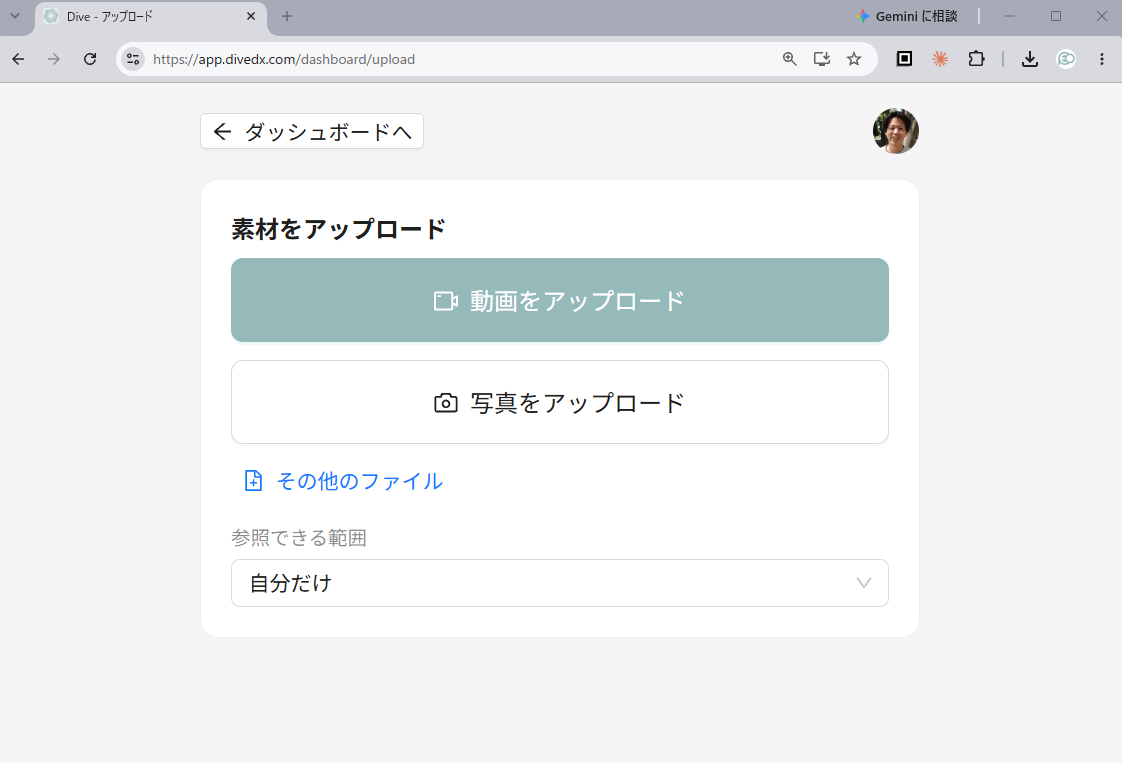
[Material upload only] displays a single upload-only screen. Procedures / Media list, administration screens, and reports are not shown. Since multi-factor authentication is not required, this option can be used by single sign-on users, Email-free account holders, and smart glass QR code login users.
● We redesigned the settings screen
Settings are now organized in a simple two-row table showing "who" and "what they can do," with a flowchart constantly displaying what each user can access with those settings. You can specify whether the target users are "All" or a specific selection using radio buttons. The two-factor authentication exception settings now also include a [Permitted access level] option (All features / Material upload only).
● About the upload-only screen
The upload-only screen can be used by regular users regardless of whether restrictions are enabled. You can copy the screen URL from [Integration & Sharing] in the user menu at the top right of the screen (it is not displayed in the sidebar).
● The location of [Approval settings] has changed
We moved [Approval settings] from the [Security] tab to the [Business rules] tab (formerly Operational Authority) under Owner Functions. This is because it relates to publishing procedures rather than permission settings. The content of the settings remains unchanged.
② Enhanced smart glass voice control
- You can now execute AI check using the voice command "Check". Previously, you needed to focus on the button with "Up" / "Down" and then say "Select" in two steps. Now you can execute it regardless of focus position. If you say "Check" again after the result, it will re-check instead of retaking photos
- While freely typing comments, phrases like "I've checked" are no longer treated as voice commands. Voice commands resume when focus leaves the input field
- On Vuzix M400, the [Check with AI] button for questions can now be selected using the touchpad or voice commands ("Up" / "Down"). Numbers are also displayed on RealWear's number overlay
- While taking photos for questions, the procedure video and narration now pause. This prevents videos from continuing to play in the background during capture, which caused camera startup to appear frozen on lower-powered devices
- Fixed an issue where the first option would not highlight immediately after opening a question. The screen now scrolls to the item selected by voice
- Fixed an issue where using the back operation after opening a procedure from a QR code would loop between folder and procedure screens. Inside a folder, navigation now follows the hierarchy instead of history
- Improved loading speed for "Recent procedures" shown on the smart glass home screen
- Rearranged buttons on the smart glass dashboard vertically for easier access
③ Added "Auto transition" option to shared URLs
- When issuing a shared URL, you can now specify whether to automatically proceed to the next procedure when the current procedure is completed
- Options selected in the sharing modal (auto transition, language) are now saved to the device and used as defaults next time. Jump destinations are not saved since their meaning varies by procedure
- Added an [Auto transition] column to the external shared URL list
Auto transition settings specified for shared URLs do not overwrite the settings saved on the viewer's device.
④ Improved approval and storage folder settings
There were cases where draft procedures could not be edited by anyone or approval could not proceed due to permissions on the procedure storage folder. We have made the following corrections.
- Fixed an issue where drafts could be published while stored in a folder the author could not view, causing the procedure to disappear from the author's list and search immediately upon publication. The storage folder is now verified during publishing
- Authors can now open, edit, and save their own unpublished drafts regardless of permissions on the Intended storage folder. This is because drafts have not yet been placed in any folder (applications still follow storage folder permissions as before)
- Fixed an issue where the approval button would not appear based on edit permissions for the storage folder. Approvers are determined by the approval workflow, which is separate from folder permissions
- Fixed an issue where the folder selection screen would start with an inaccessible folder and show empty contents. It now opens with the Home folder as the starting point
- Fixed an issue where the storage folder for the first procedure immediately after service activation could be set to a folder the user could not view
- Standardized error messages related to storage folder issues across applications, approvals, and rejections. Clearing the folder error by reselecting now removes the error message
⑤ Other improvements and bug fixes
- When changing the "Original language" of a procedure later, the text-to-speech audio is now regenerated for that language. Previously, old audio files remained and continued to play untranslated
- Fixed AI analysis failures for videos uploaded before spring 2025
- Fixed an issue where editing a group name in group management would corrupt Japanese input conversion, causing characters to be duplicated (e.g., "南部エリア" becoming "南部えええりえりあ"). Also fixed an issue where pressing Enter to confirm input or Escape to cancel would end the edit
- Thumbnail images for folders without access are no longer displayed. Thumbnails often show the folder contents, potentially revealing information about inaccessible folders. The procedure count and subfolder count in folders are still displayed as before
- Fixed an issue where certification files attached as credentials could not be opened in some environments. Also fixed issues including one where records of cancellation or rejection for credentials would become valid again due to unrelated saves
- Updated guidance text for tags and dictionary to reference the actual menu label ([Dictionary / Templates]) instead of a non-existent sidebar menu
- Fixed an issue where images uploaded from smart glasses were consuming the video upload limit
- Improved the error message displayed when password reset fails
- Fixed an issue where cards in the settings screen would not adapt to the display width
Impact on existing usage
The settings added in ① retain the current behavior until changed. Items ②–⑤ are improvements and bug fixes, so no action is required on your end. [Approval settings] only changed location; the settings themselves have been carried over.
Related information
- Configure IP address restriction
- Use the upload-only screen (Upload screen)
- How to use AI check (double-check of submission photos)
- Vuzix M400 basic operations and how to import recorded videos
- About the smart glass app
- How to use external sharing
Thank you for continuing to use Dive◎